How to import your workout history into PRzilla
Bring an export from your previous workout app into PRzilla. Here is where to send it, what happens after upload, and what an import can preserve.
You can send your previous workout app's export to PRzilla from Settings > Import from another app. Choose the app, follow its export instructions, and select the file. We handle imports by hand during the beta.
Uploading starts the manual import process; your history will not appear immediately. What we can bring over depends on the dates, workouts, results, and other details in the export.
Start with the export you already have
The import screen has entries for SugarWOD, Strava, Strong, Hevy, Wodify, Beyond the Whiteboard, Hero WOD, SportBit, and Fitbod. Each opens instructions for that source and a Choose export file button.
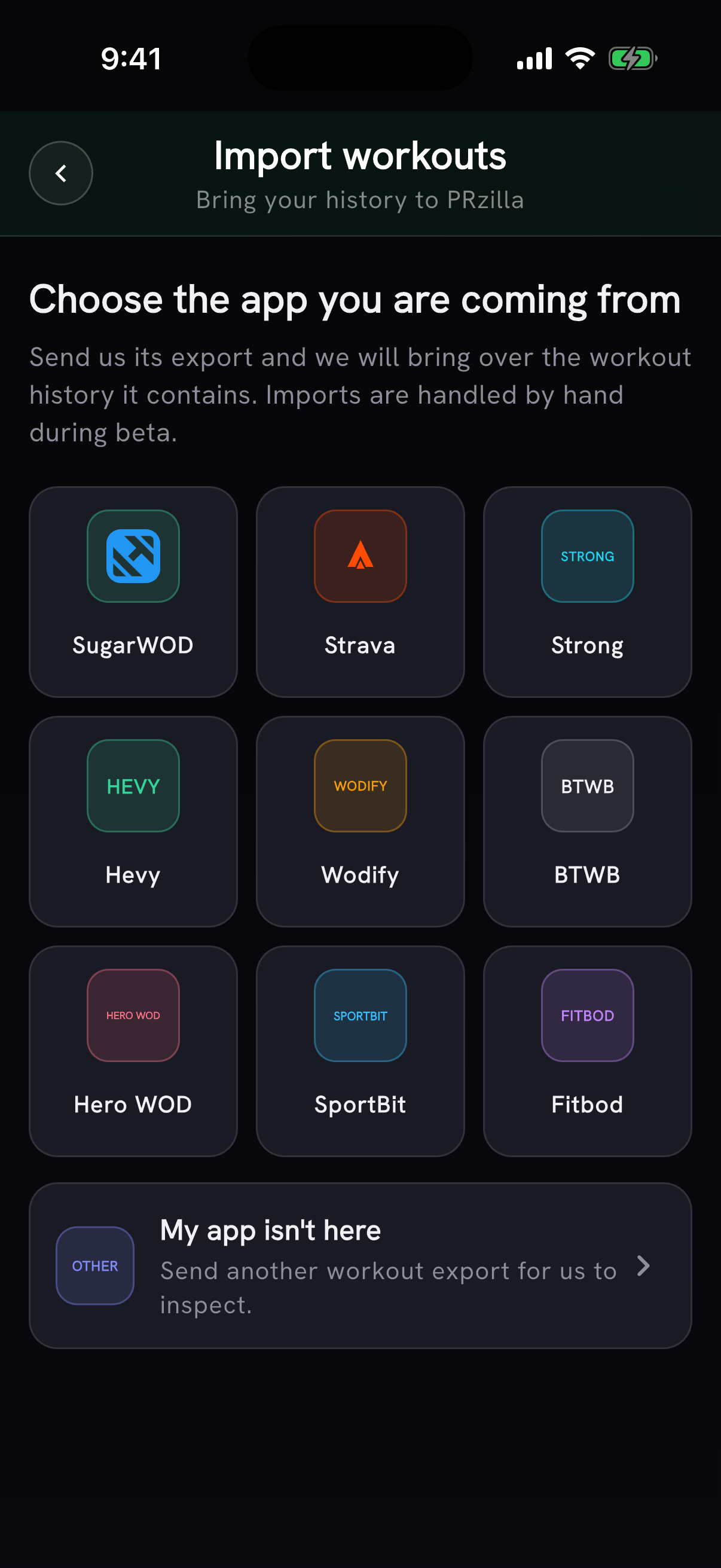
Choose the app your export came from. The screen also explains that imports are handled by hand during beta.
Most of those entries accept a CSV. Hero WOD uses its .CTH backup. PRzilla's Strava instructions ask for activities.csv from the account-download archive, rather than the entire archive.
If your app is missing, choose My app isn't here. That path accepts CSV, JSON, or ZIP for inspection. It is a way to ask us to look at the export, not a promise that every file format can be imported unchanged.
You need to be signed in to submit a file. The sheet shows the accepted file type and size limit before you choose it.
A workout result and its movement history are different things
A saved result can be very short: a workout name, a date, a time, and "Scaled."
That may be enough to recover the result. It may not explain which movements changed, what weight you used, or how much of a capped workout you completed. An importer cannot recover those details just by recognizing the workout's name.
The same issue appears with a description that contains both the prescribed workout and a note about what you actually did. Treating the prescription as completed work would make the history look more complete while making it less accurate.
During review, prescribed work and recorded work need to stay distinguishable. Different apps' exports can contain very different levels of detail.
Check the parts you will use next week
Once an import is complete, start with a few sessions you remember well. Open a benchmark result, a strength day, and a workout you scaled, if those are part of your history.
Check the dates and units. Read the notes. For a scaled workout, check the recorded movements and loads rather than judging the import only by its headline time.
Those details are what you will rely on when the workout comes around again.
If you are coming from SugarWOD or BTWB, the existing SugarWOD comparison and BTWB comparison explain more about the different training records. When you are ready to bring yours across, open Import from another app in Settings and send the export.